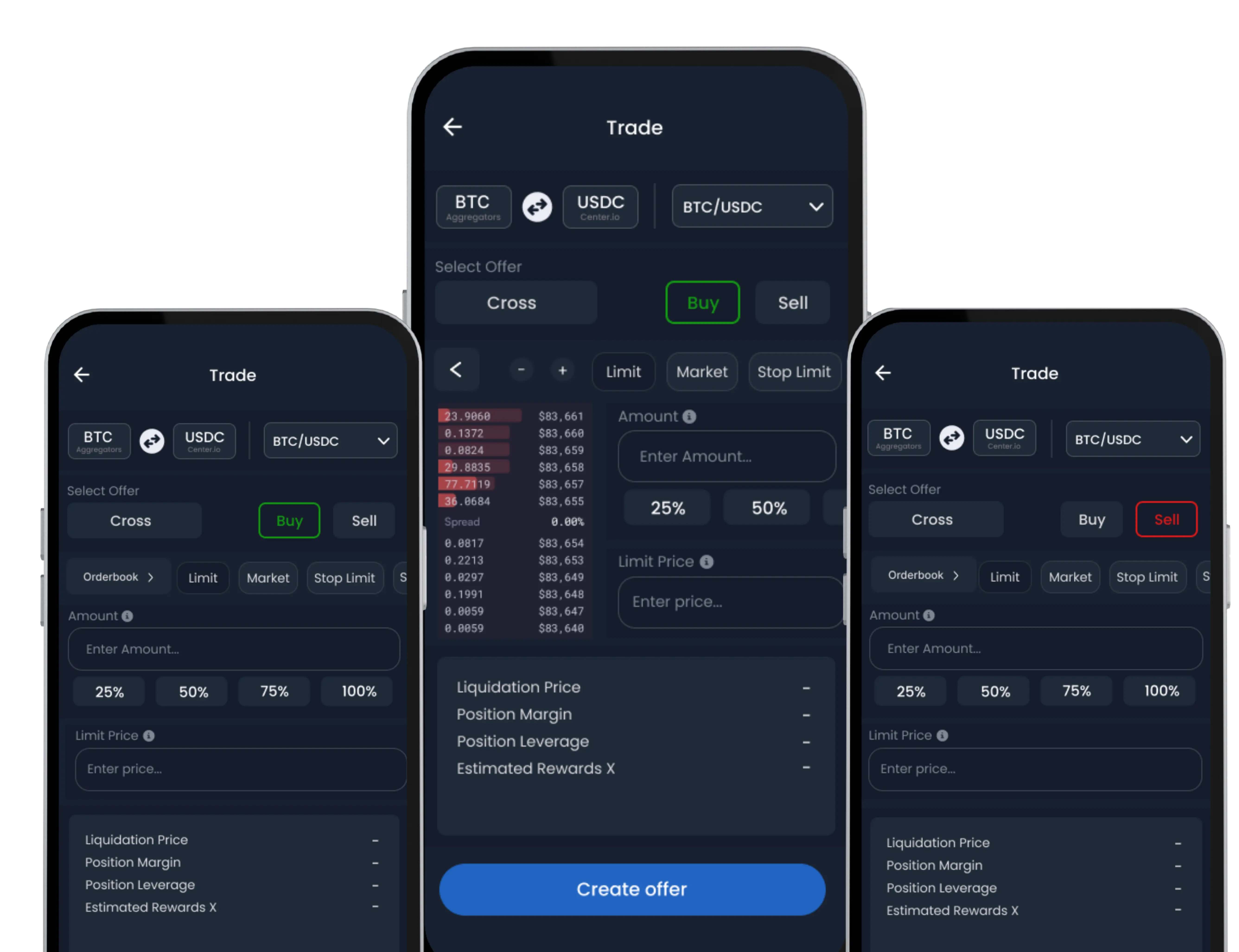
Already using another crypto wallet? SwiftEx makes it easy to import your existing wallet using a Private Key, JSON file, or Recovery Phrase giving you full access to your assets within a secure, intuitive interface. Whether you’re switching platforms or accessing an older wallet, importing is seamless and secure.
-
Navigate to the Wallet Tab
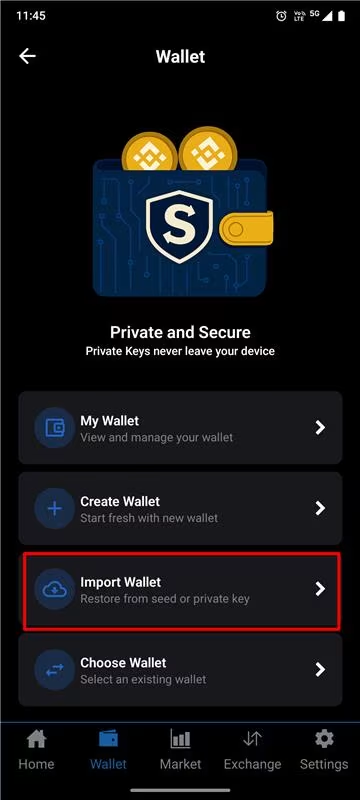
Open the SwiftEx app. Tap the ‘Wallet’ icon from the bottom navigation. Select the ‘Import Wallet’ option. After this, select one of the listed supported wallet types.
-
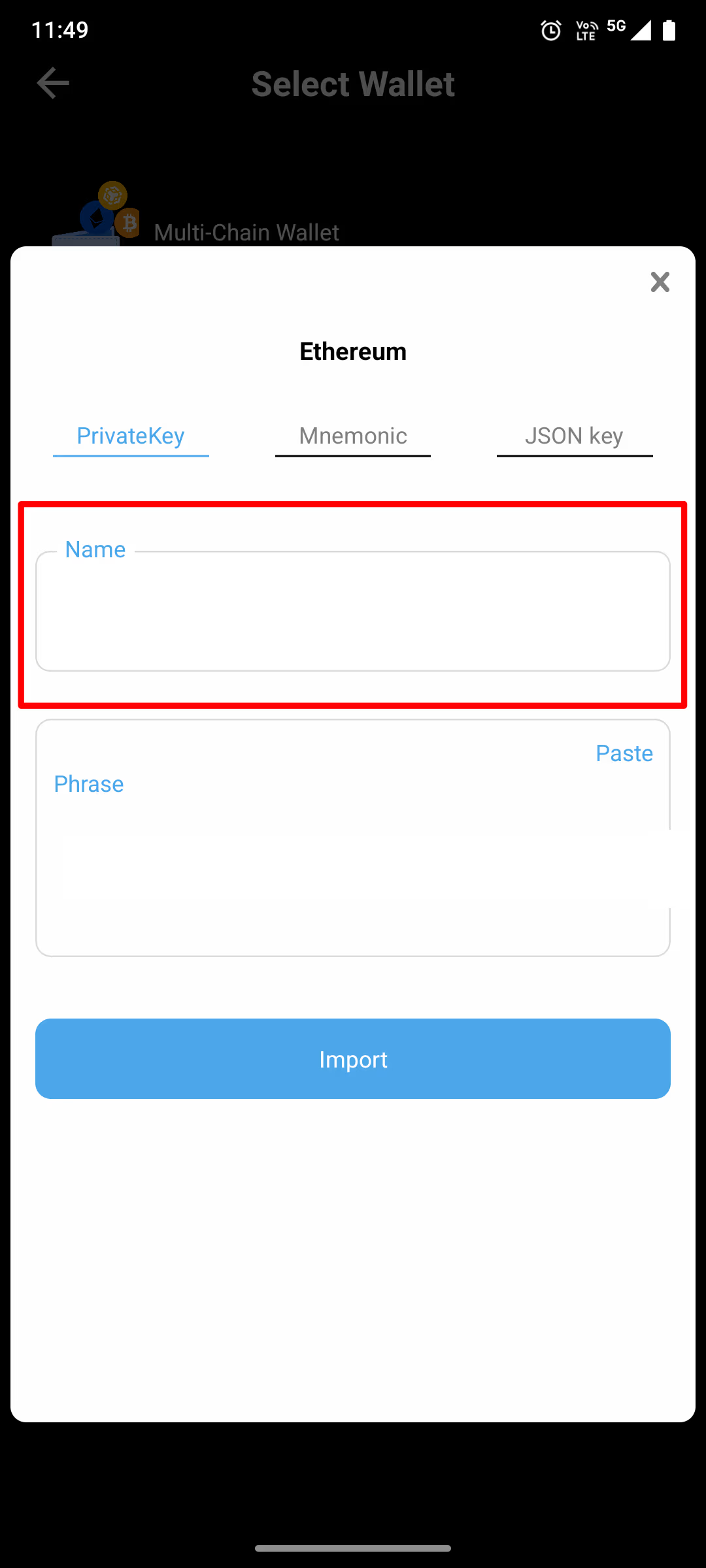
Name Your Wallet
Give your imported wallet a unique name for easy identification. This name is only visible to you and can be changed later.
-
Choose Import Method
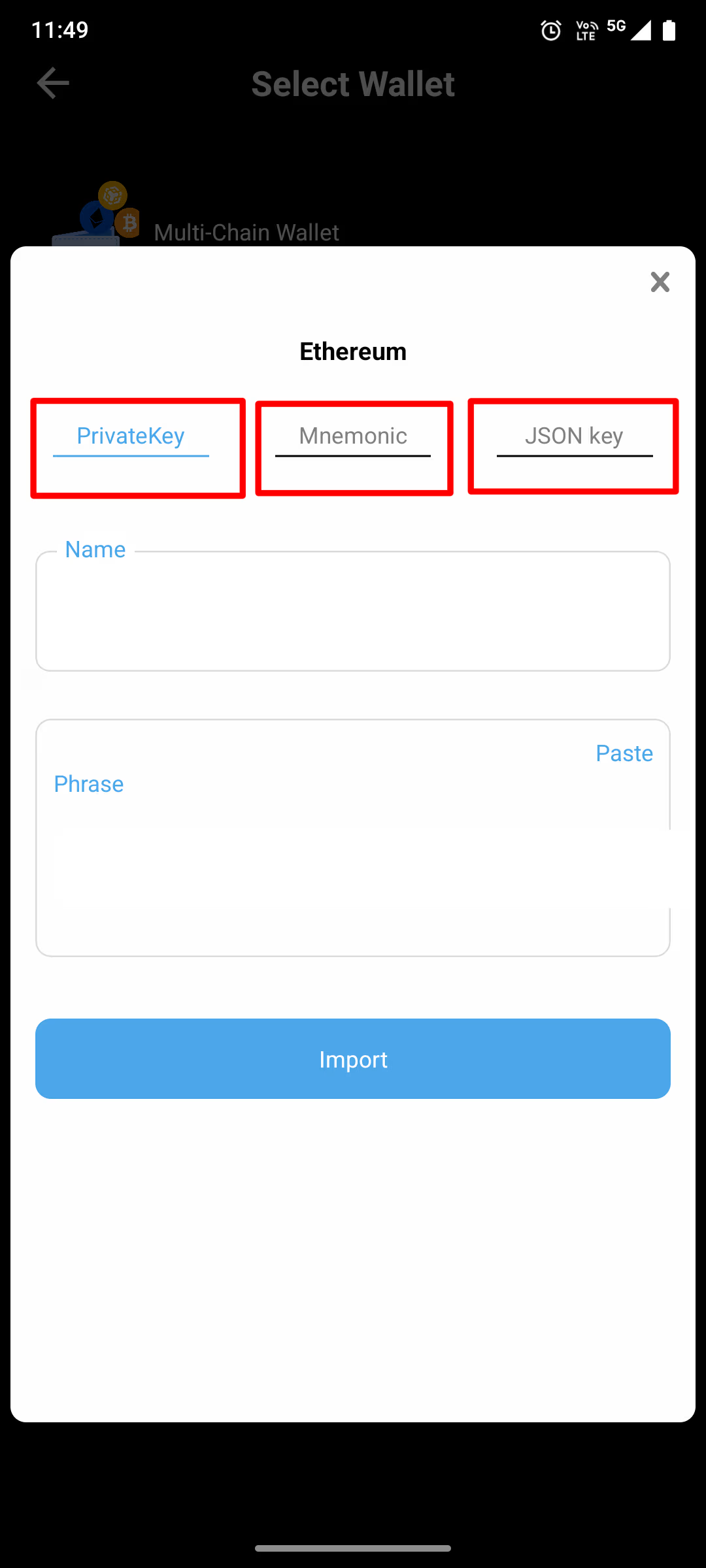
SwiftEx supports three methods to import an existing wallet. Select the one that matches your current setup:
• Private Key – Enter your wallet’s private key directly.
• JSON Key File – Upload the key file downloaded from a previous wallet platform (e.g., MetaMask, MyEtherWallet).
• Recovery Phrase / Mnemonic – Enter the 12 or 24-word phrase used to generate your wallet.
Tip: Use only one method per import. The option you select should match how you backed up your original wallet.
-
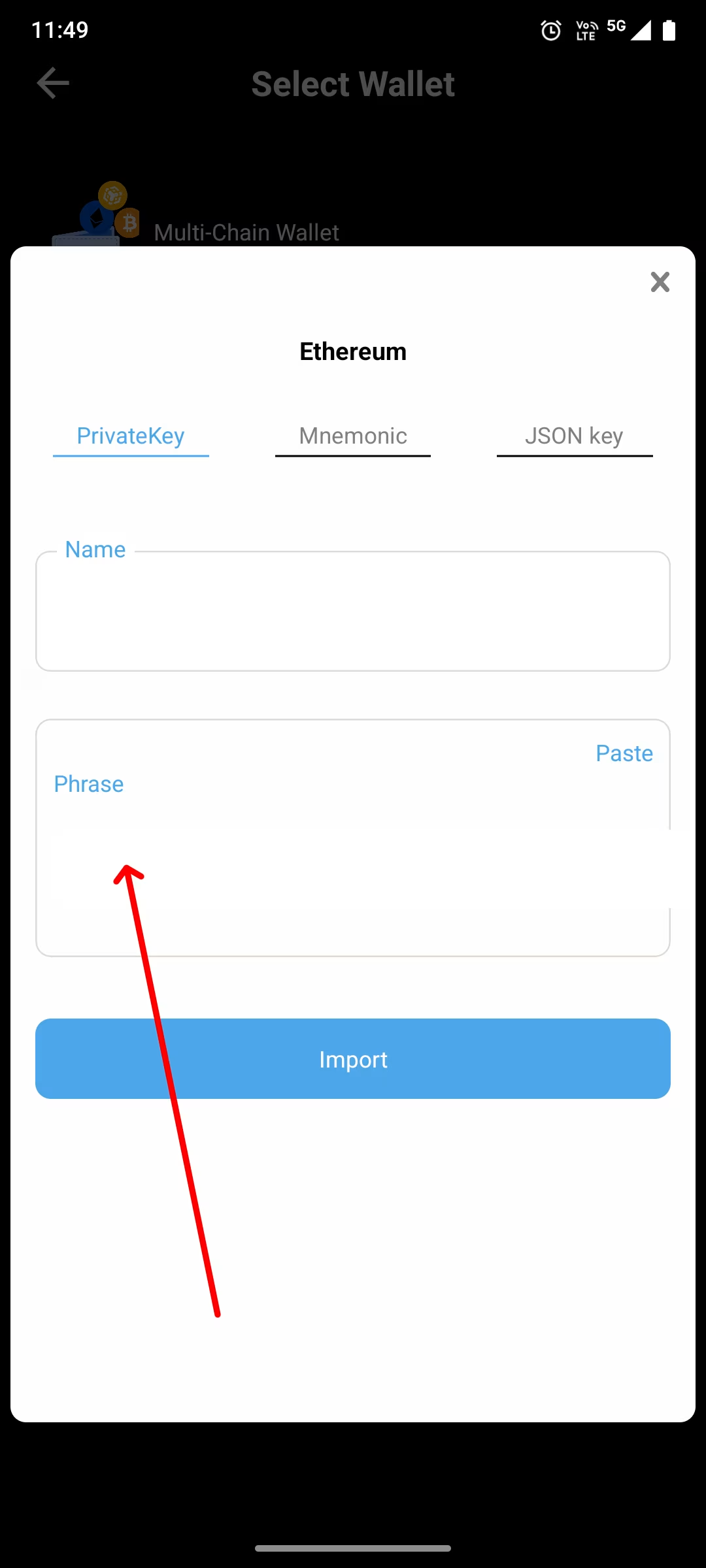
Paste or Upload Your Key
• Private Key: Paste the full private key string.
• JSON File: Upload the file directly from your device.
• Recovery Phrase: Enter each word in the correct order, ensuring there are no typos or extra spaces.
-
Complete the Import
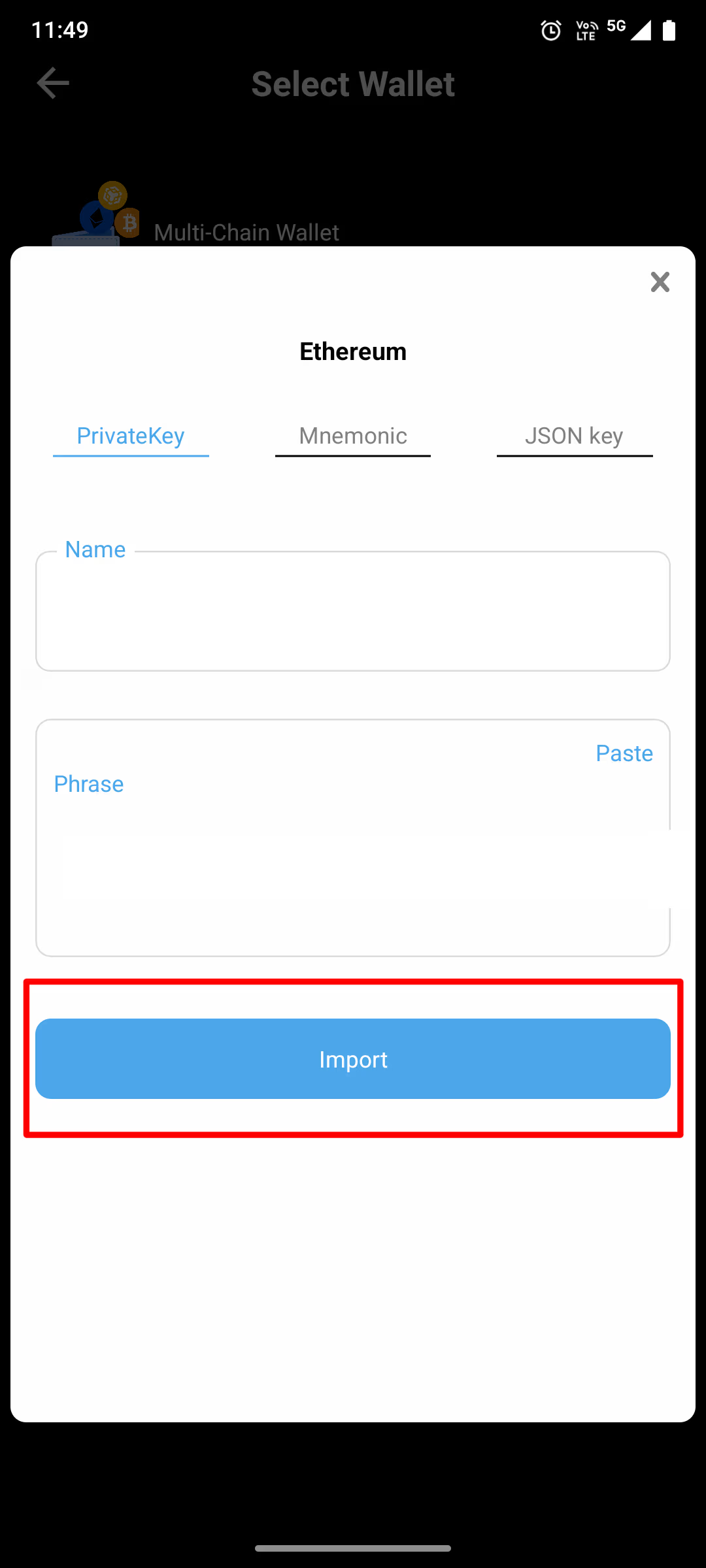
Tap ‘Import’ to finish the process. Your wallet will now appear in your Choose Wallet.
You can now:
• View balances across supported chains.
• Send, receive, or swap tokens.
• Manage assets with full functionality.
Security Reminder
Anyone who gains access to your private key or recovery phrase can take full control of your wallet and funds. SwiftEx does not store or have access to these keys. Be sure to:
• Never share your keys with anyone, not even SwiftEx support.
• Avoid saving them in plain text on your phone or cloud storage.
• Use a password manager or write them down and store them in a secure physical location.