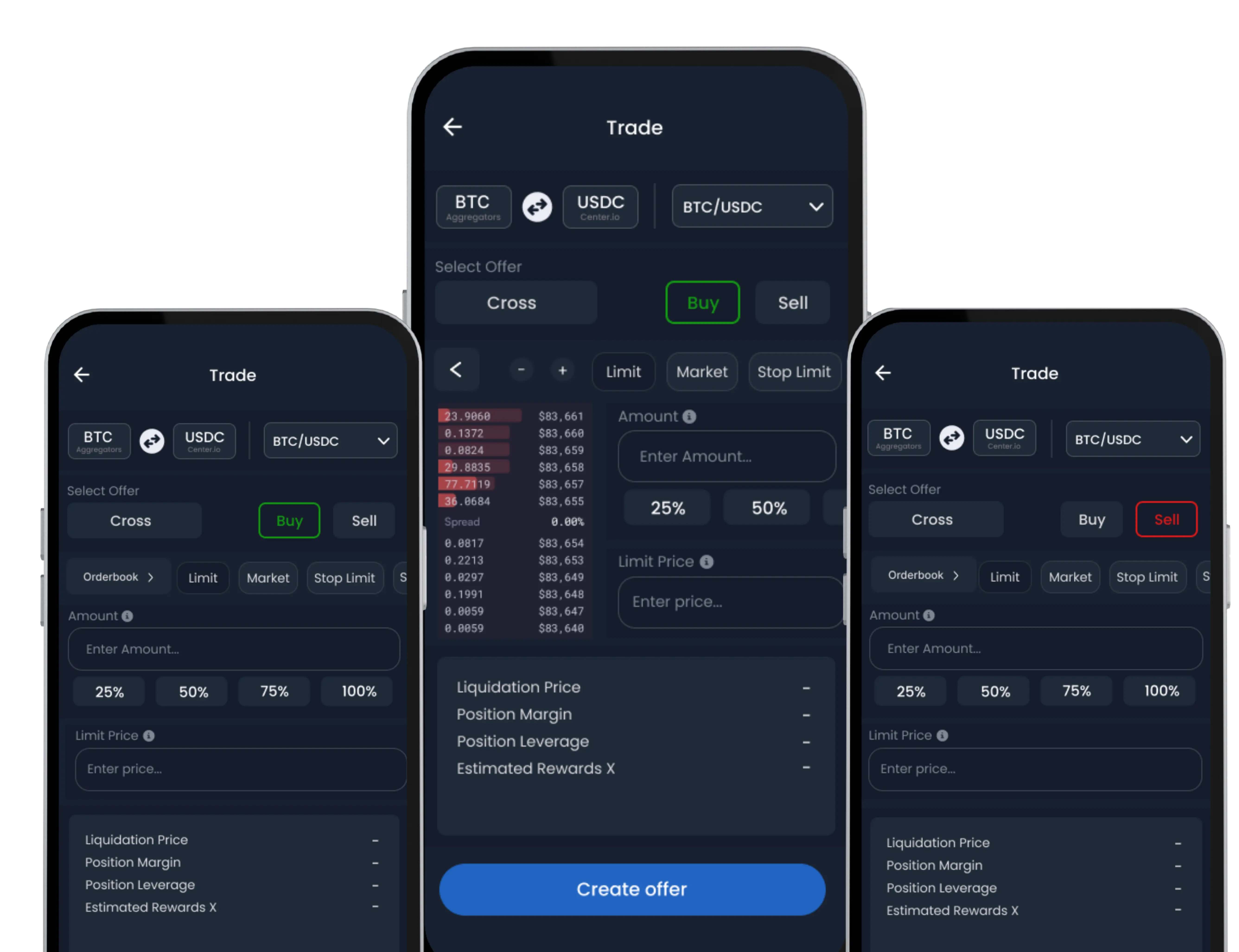
You can get started with the SwiftEx mobile app in just a few simple steps. Available for both Android and iOS, the app provides a secure and intuitive interface to manage your crypto journey from day one.
SwiftEx Mobile App Setup Guide
-
Download the App
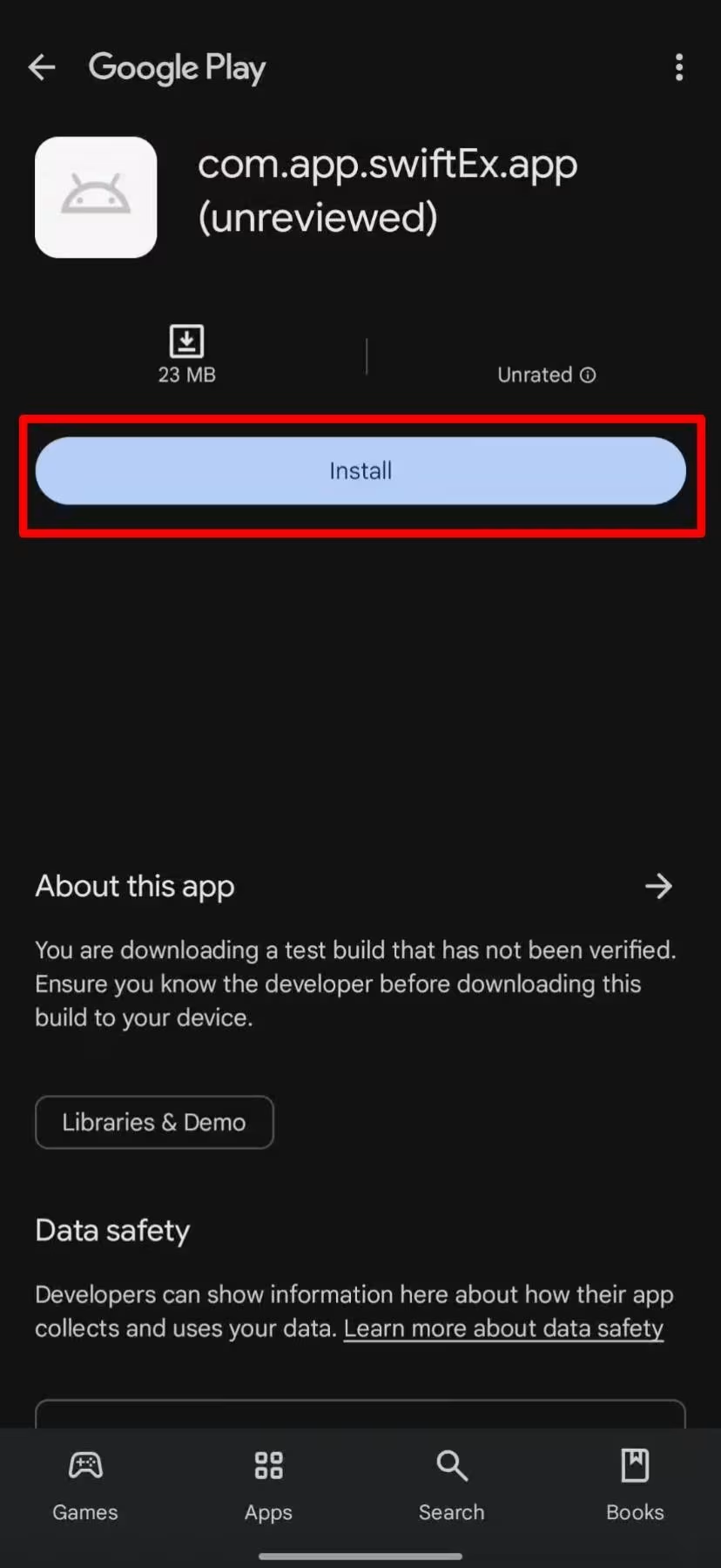
Go to the Google Play Store (Android) or Apple App Store (iOS). Search for “SwiftEx” and download the official application to your device.
-
Launch the App and Set a PIN
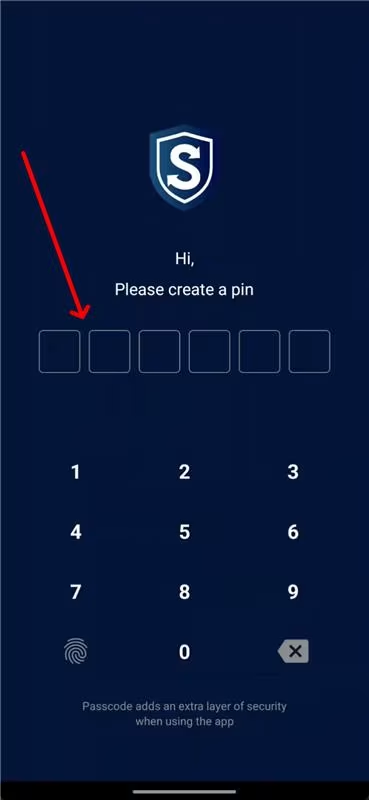
Open the app after installation. You’ll be prompted to create a 6-digit PIN code that will be used to:
• Access the app securely
• Authorize wallet actions and transactions.
Make sure your PIN is easy to remember but difficult for others to guess.
-
Confirm Your PIN
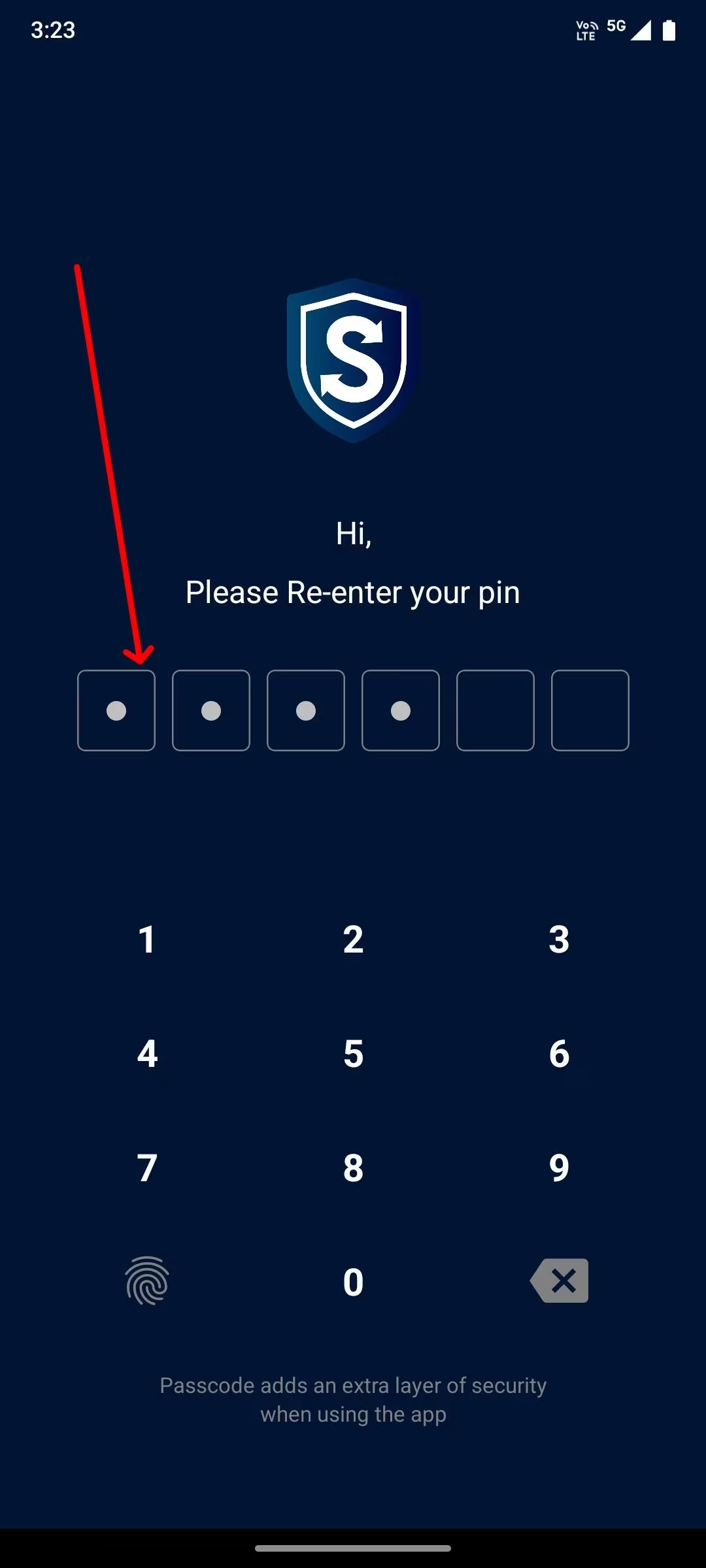
To complete the account setup, you’ll be asked to re-enter the same 6-digit PIN you set earlier. This ensures your PIN is correctly stored and confirmed for future use.
-
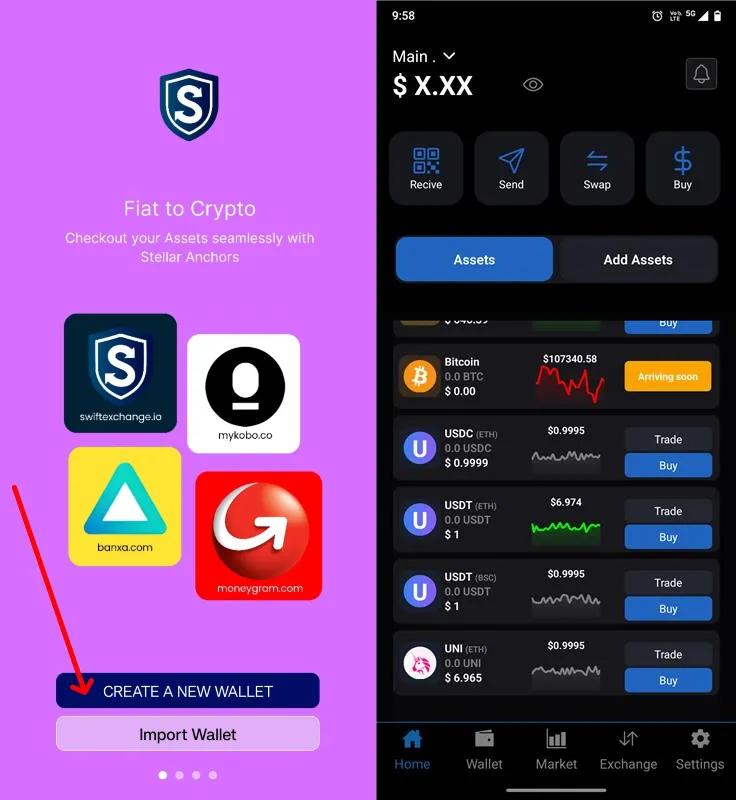
Choose a Wallet Setup Option
Once your PIN is set, you'll be given three choices for wallet setup:
-
Create a New Wallet
Ideal for first-time users looking to generate a fresh wallet.
-
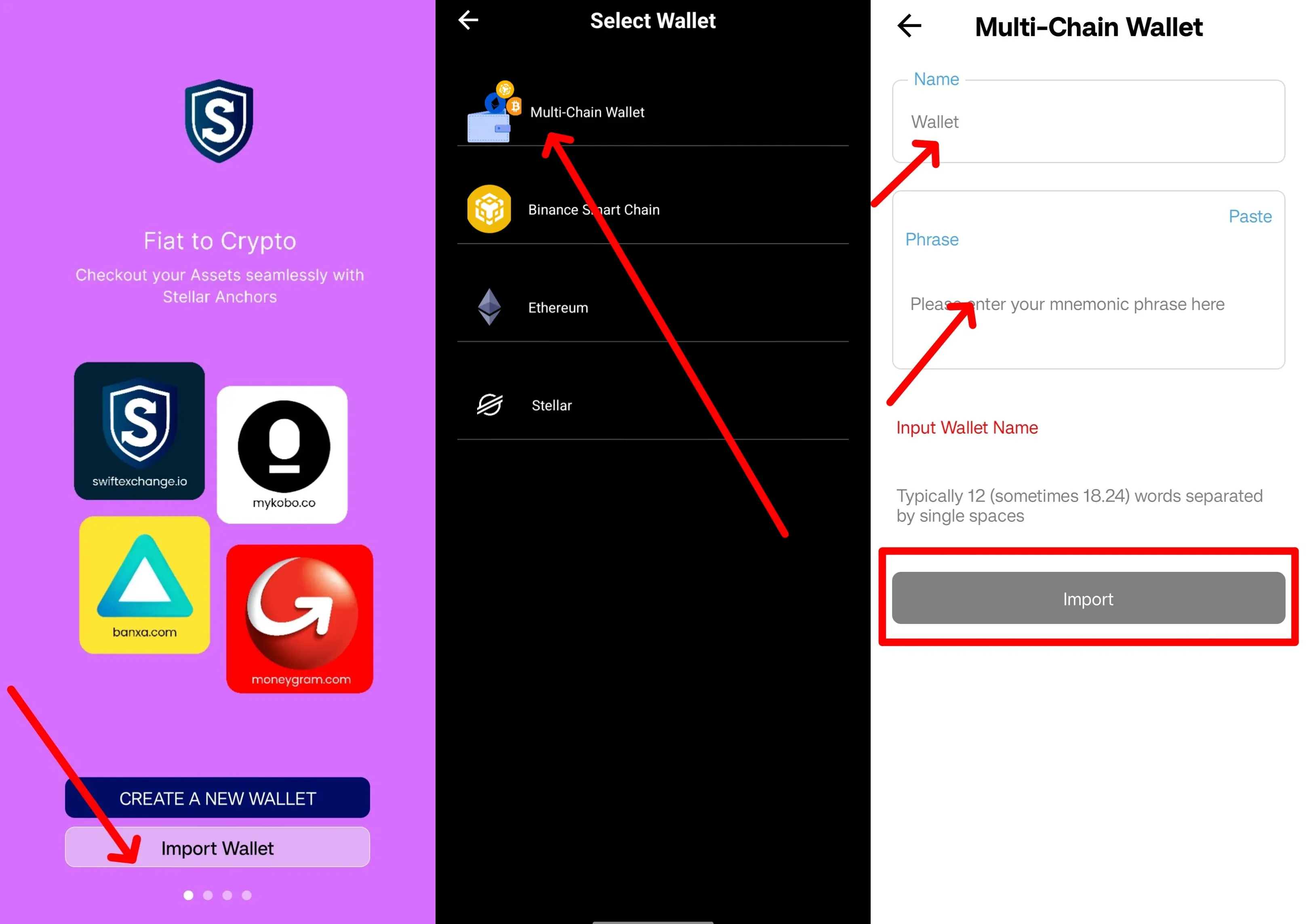
Import an Existing Wallet
If you already have a wallet (using private key, JSON, or recovery phrase), you can bring it into SwiftEx.
-
Create a New Wallet
-
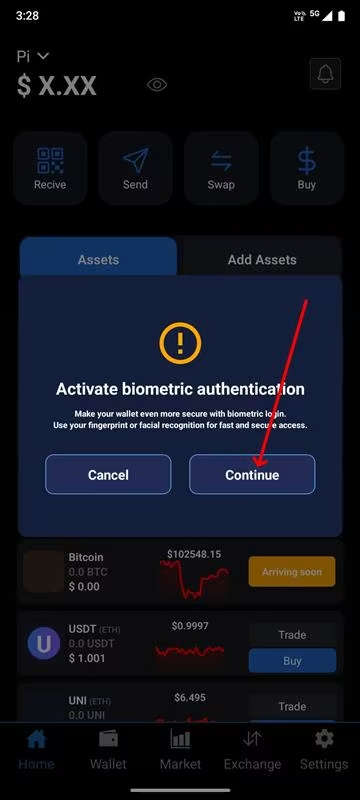
Enable Biometric Security (Optional)
For enhanced security and ease of access, enable Face ID or Fingerprint Unlock, depending on your device’s capabilities. This step is optional but highly recommended for faster and more secure access.
Once this setup is complete, you’re ready to start exploring the SwiftEx ecosystem — whether it's managing wallets, bridging, or swapping assets.